> For the complete documentation index, see [llms.txt](https://docs.phyn.app/llms.txt). Markdown versions of documentation pages are available by appending `.md` to page URLs; this page is available as [Markdown](https://docs.phyn.app/guides/delete-downloaded-tv-shows-movies.md).
# Delete downloaded TV Shows/Movies
This guide provides step by step instructions on how to delete downloaded TV Shows and movies
One of the most used features of Phyn is the ability to download and watch movies or TV shows when not connected to your server. However, this can significantly increase the usage of your device storage space. With a few taps, you can declutter your library by removing movies or TV shows that you've already watched or no longer need. Here's a simple guide on how to delete titles from your streaming app library.
#### Step by step instructions
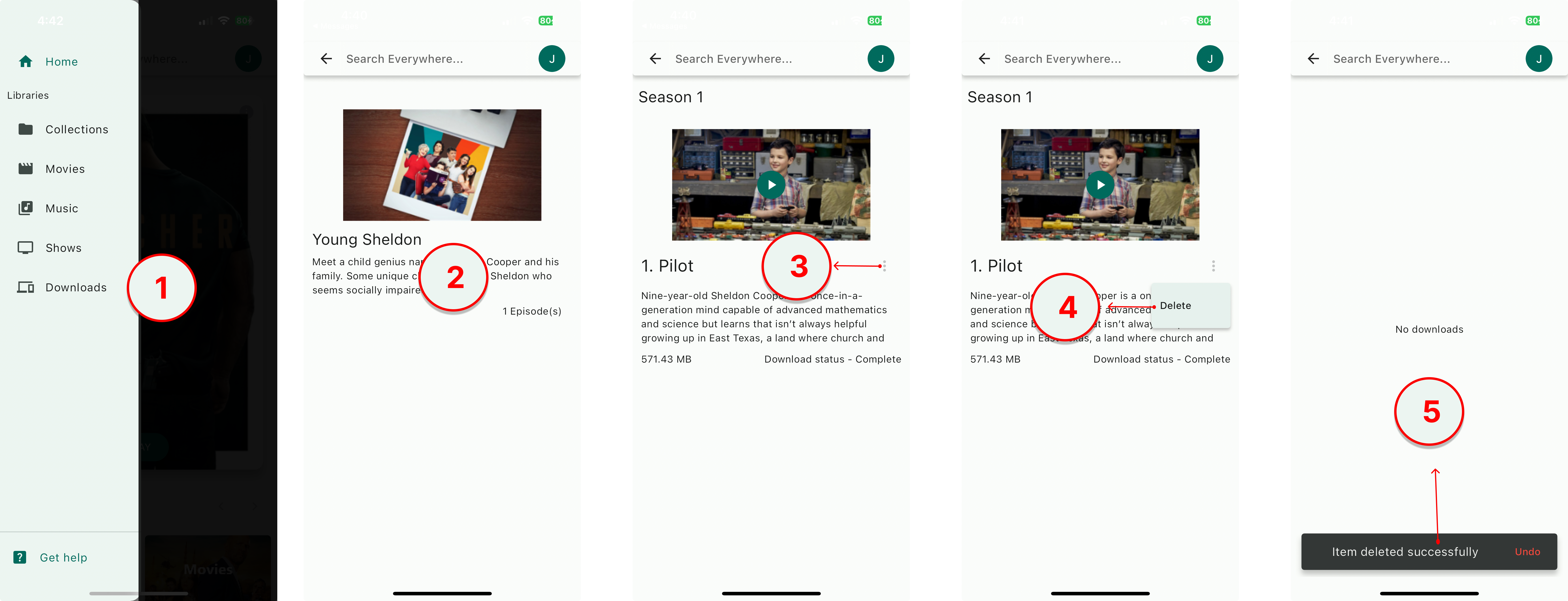
1. **Navigate to Your Downloads Section**: Access the downloads section from the navigation menu.
2. **Select the Content to Delete:** If it is a TV Show, tap on it to navigate to the episode otherwise skip to step.
3. **Access the Delete Option:** Tap the overflow menu button to reveal the delete menu.
4. **Delete the movie/show:** Tap on the delete menu to delete the media file
5. **Confirm Deletion**: You would see a message telling you the item has been deleted. The item is deleted when this message disappears, this means you can still reverse the action by clicking the *undo* button. [***To ensure deletion happens, wait for the message to disappear before exiting***](#user-content-fn-1)[^1]*.*
{% hint style="danger" %}
The deletion happens when the *item deleted* message disappears. So, you must wait for the message to disappear if you want to proceed with the deletion.
{% endhint %}
Find below photos of the above instructions.